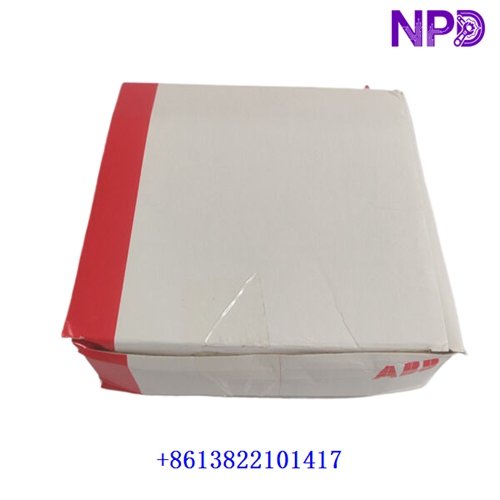
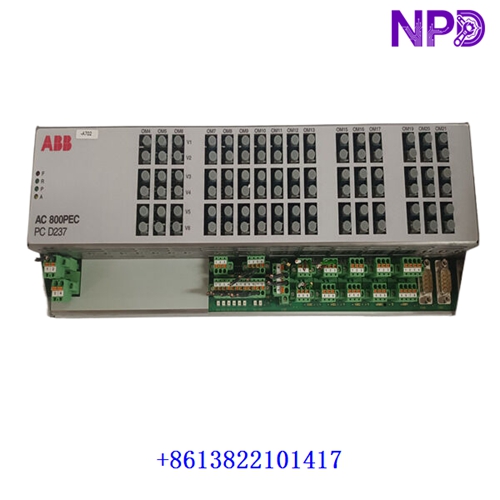
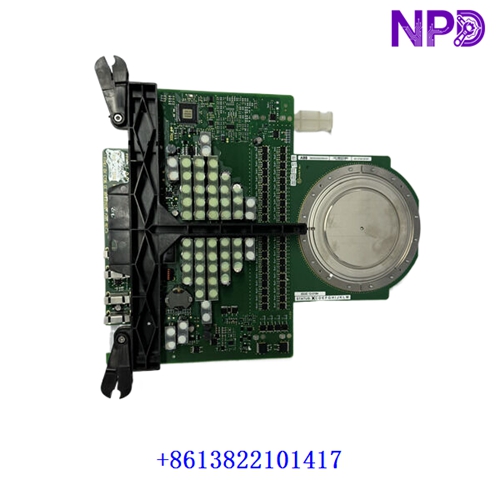

Description
This technical datasheet provides comprehensive specifications, installation procedures, routine maintenance guidelines, troubleshooting steps, safety precautions, and frequently asked questions for the ABB 1TGE120025R0101 MNS iS MView human machine interface. Engineered for low-voltage switchgear and intelligent motor control center (IMCC) environments, this advanced operator panel ensures intuitive system monitoring and reliable local control management.

⚙ Product Technical Parameters
- 1. Brand: ABB
- 2. Model: 1TGE120025R0101 / MNS iS MView
- 3. Series: MNS iS Switchgear Control and Monitoring Series
- 4. Product Name: Human Machine Interface (HMI) Operator Panel
- 5. Country of Origin: Switzerland / Germany
- 6. Physical State: Electronic display terminal with integrated microprocessor hardware
- 7. Dimensions: 210 mm × 150 mm × 45 mm (Standard panel-mount display format)
- 8. Weight: 0.80 kg
- 9. Origin Location: European Manufacturing Facility
- 10. Power Consumption: 12W (Max operational draw at rated DC control voltage)
📋 Initial Operation Checklist
Before mounting and powering on the MView operator panel for the first time, verify all physical and electrical configurations to prevent communication faults or hardware damage:
- Inspect the display screen, enclosure housing, and rear communication ports for any signs of transit damage or environmental contamination.
- Confirm that the auxiliary DC power supply matches the nominal voltage requirements of the terminal with proper grounding.
- Verify that all network communication cables (e.g., Ethernet or fieldbus links) are securely seated and locked into the rear ports.
- Ensure ambient operating temperature within the switchgear compartment remains strictly between -10°C and +55°C.
- Check boot-up indicator lights and firmware initialization messages to prepare for status interpretation during initial startup.
🛠 Routine Maintenance and Upkeep
Regular maintenance ensures optimal operational longevity and sustained interface reliability across automated switchgear systems:
- Perform bi-annual visual inspections to check for dust accumulation, environmental moisture, or corrosion on rear terminal blocks.
- Clean the touchscreen display surface gently using a soft, dry, anti-static microfiber cloth; avoid harsh chemical solvents or abrasive cleaners.
- Monitor firmware versions and network communication status periodically during scheduled facility maintenance windows.
- Verify panel mounting clamp tightness annually to prevent loosening caused by industrial mechanical vibration.
🔧 Troubleshooting and Common Issues
Systematic problem isolation minimizes downtime when operational or communication anomalies arise in the field:
- Display Panel Unlit / No Power: Check external supply circuit breakers, verify DC power supply voltage levels at the rear terminals, and inspect fuse continuity.
- Communication Loss with Switchgear Controller: Inspect network patch cables, verify IP address or bus node configurations, and check switchgear gateway status.
- Touchscreen Unresponsive: Perform a soft reboot of the terminal, clean static buildup or moisture off the glass surface, and check interface cabling.
- Data Refresh Delay: Check network traffic congestion, verify switchgear processor load, and inspect communication link signal integrity.
🛡 Safety Precautions
Strict adherence to safety guidelines protects personnel from severe electrical hazards and prevents permanent hardware damage:
- Always disconnect auxiliary power supplies before installing, removing, or servicing the HMI terminal panel.
- Observe standard electrostatic discharge (ESD) wrist strap handling protocols when interacting with internal electronic components.
- Do not operate the device in explosive or hazardous atmospheres unless housed in a certified switchgear enclosure.
- Ensure all field wiring complies strictly with local electrical safety codes, low-voltage standards, and manufacturer recommendations.
❓ Frequently Asked Questions (Q&A)
- Q1: Can the MView HMI panel be replaced while the switchgear system is energized?
- A1: While the panel runs on low-voltage auxiliary power, disconnecting or replacing the unit should be done with care, and auxiliary control power should be isolated to prevent communication transients or configuration errors.
- Q2: What should I do if the screen displays a communication timeout error?
- A2: Verify that the Ethernet or fieldbus cables are firmly connected to both the HMI and the switchgear control unit. Check network settings and ensure the master controller is fully operational.
- Q3: Is project configuration data stored locally on the terminal?
- A3: Yes, interface screens, graphic layouts, and user preferences are stored within the unit’s internal non-volatile memory, ensuring data retention through power cycles.