Description
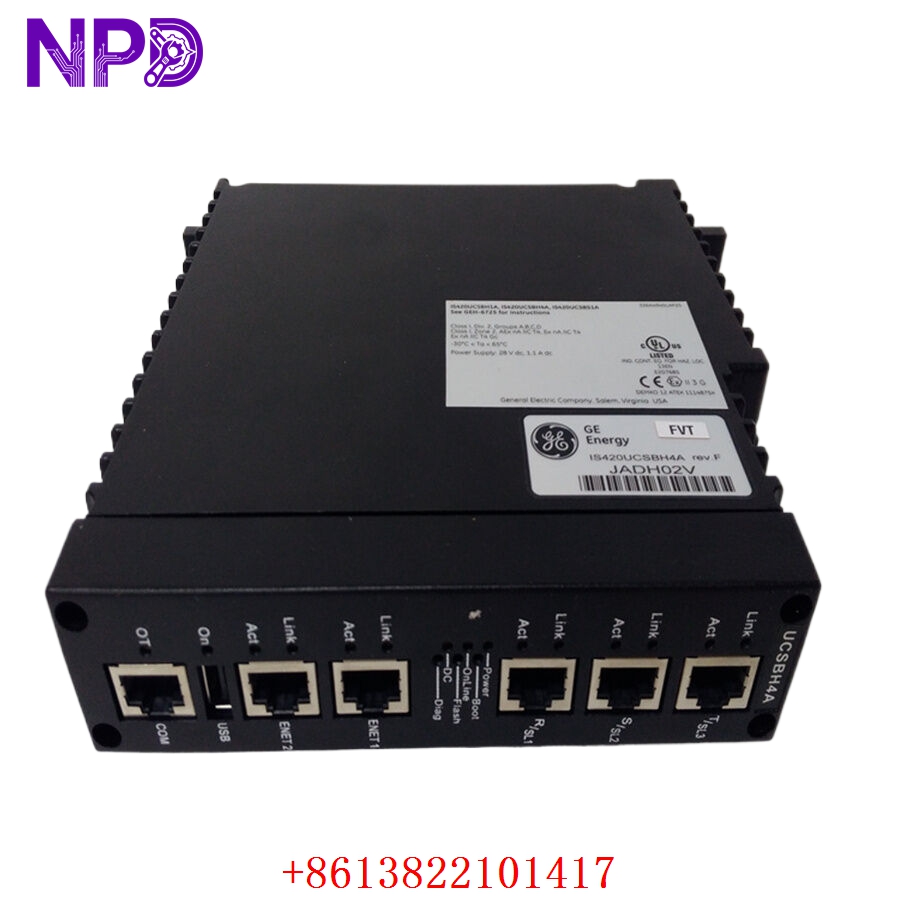
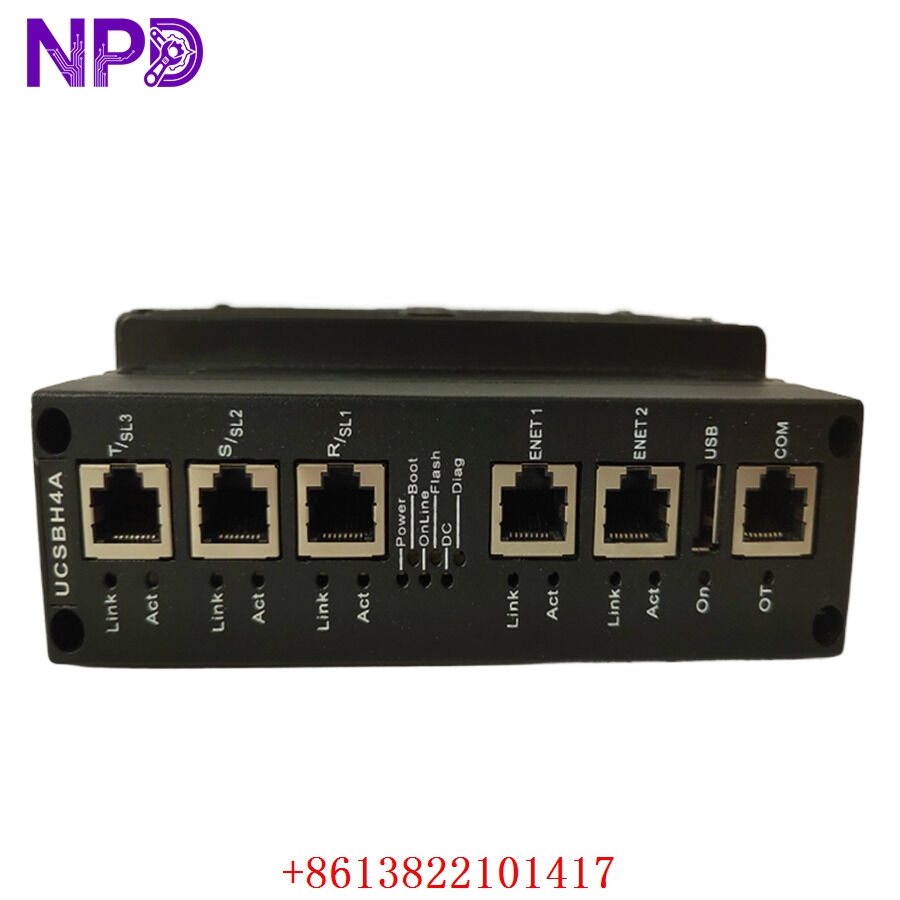
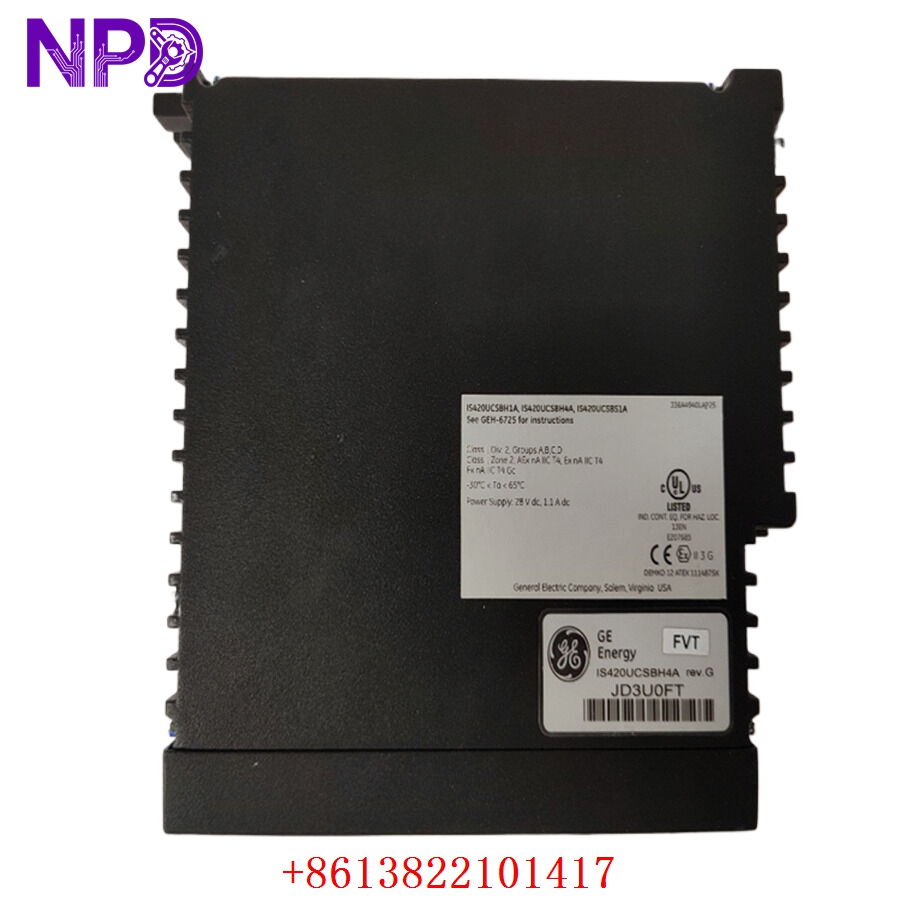
- 🔢 Model: IS420UCSBH4A
- 🏢 Brand: GE (General Electric)
- ⛓️ Series: Mark VIe / VIeS Turbine Control System
- 💡 Core Function: High-performance controller (UCSB) for real-time turbine control and process regulation
- 🛠️ Type: Controller / Processor Module
- ⚡ Key Specs: Dual-core processor, high-speed Ethernet communication (IONet), robust I/O handling
- ⚙️ Processing: Dual-core CPU for high-speed deterministic control
- 🌐 Network: Dual 10/100 Mbps Ethernet ports (IONet) for redundant network connectivity
- 🌡️ Operating Temp: -30°C to +65°C
- 🛡️ Reliability: Designed for high-availability TMR (Triple Modular Redundant) systems
- 💡 Status Indicators: System Status, IONet Status, and Fault LED array
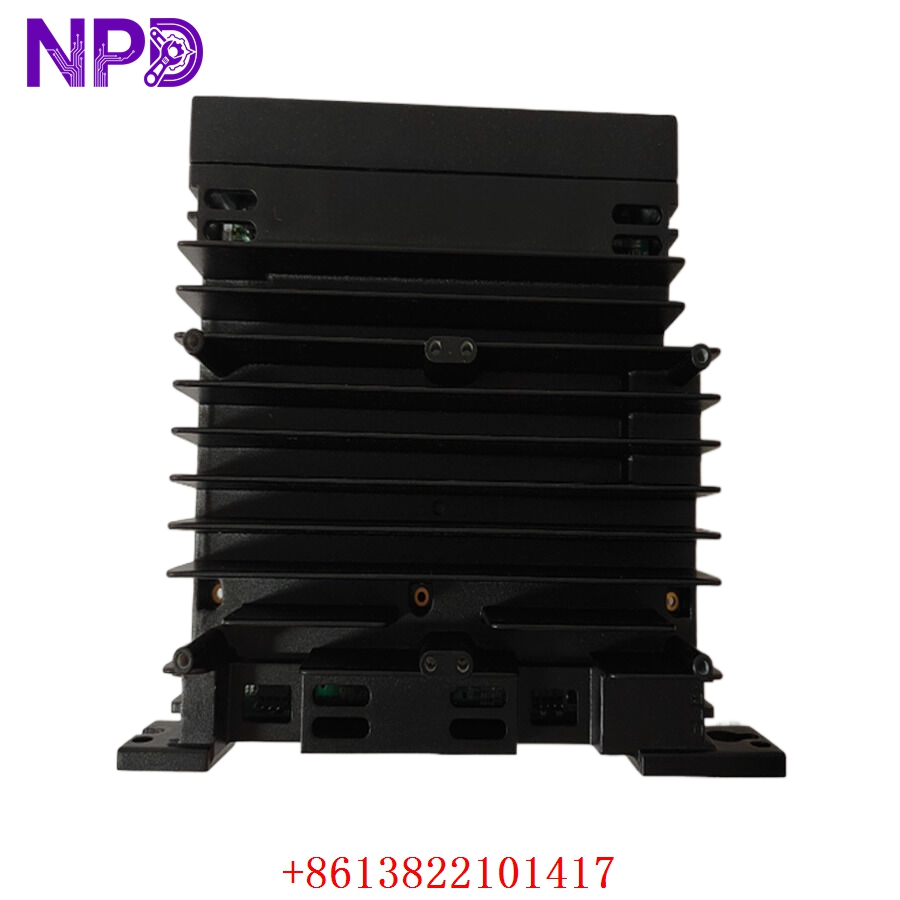
- 🛠️ Mounting: Rack-mounted controller slot
- 🔌 Interface: Front-accessible Ethernet ports and rear-plane high-density connectors
Installation & Configuration Guide
Phase 1: Preparation (20 mins)
⚠️ Safety First:
- Critical Warning: As part of a turbine control system, ensure the turbine is in a safe, offline state before replacing any controller hardware.
- Verify the rack power supply is isolated.
- 🧤 Use an anti-static wrist strap; the IS420UCSBH4A is a high-density, ESD-sensitive logic device.
Phase 2: Removal & Installation (25 mins)
- 📸 Record Settings: Document the current IONet IP addresses and firmware versions before replacement.
- 🔩 Detachment: Open the top and bottom rack latches. Carefully pull the module from the rack, being cautious of the rear-plane pins.
- 📥 Insertion: Align the module in the controller rack slot. Slide it in until the backplane connectors engage firmly. Secure the latches.
- 🔌 Connectivity: Re-attach the Ethernet cables. Ensure cables are labeled for their respective IONet networks (e.g., Net A/Net B).
Phase 3: Testing & Commissioning (30 mins)
- 🟢 Power-Up: Apply power to the rack. The Status LEDs will perform a self-test.
- 💻 Firmware Synchronization: Connect via the ToolboxST software. You will likely need to re-download the firmware and configuration file to match the rest of the rack’s TMR architecture.
- 🔄 Network Handshake: Confirm the module successfully synchronizes with the other controllers in the TMR triad via the IONet status LEDs.
- 🩺 Diagnostic Check: Use the ToolboxST “Diagnostic Viewer” to verify there are no active faults or “Loss of Communication” alarms.
Customer Cases & Industry Applications
Case: Critical Turbine Control Recovery
- Situation: A major gas-fired power plant utilized the IS420UCSBH4A as part of a TMR controller rack.
- Task: An internal processor clock error caused the controller to drop out of the TMR triad, forcing an immediate plant trip to maintain safe operations.
- Action: They found the exact IS420UCSBH4A revision in our inventory. Because this is a high-performance controller, we provided documentation support to ensure the firmware-to-hardware version compatibility was verified before site installation.
- Result: The replacement allowed the plant to re-sync the triad successfully, restoring full turbine control. Having this spare on-site enabled the team to recover from a potential 3-day outage in under 4 hours.
Frequently Asked Questions (FAQ)
Q: Is the IS420UCSBH4A backward compatible with previous UCSB versions? A: Hardware revisions are generally maintained, but software/firmware compatibility is crucial. Always match your firmware version in ToolboxST to the version running on your primary and secondary controllers in the triad.
Q: Is the unit new? A: We provide New Surplus modules. These are original GE Mark VIe components. Given the role of the UCSB in turbine safety, we do not handle repaired or refurbished units.
Q: What if the “Fault” LED stays lit after installing a new unit? A: A lit Fault LED on a new unit typically means the controller has not yet been loaded with a valid configuration file. Download the project configuration from ToolboxST. If it remains lit, verify that the IONet cabling is firmly connected to both ports.
Q: Do I need to re-program the controller? A: The controller itself is a hardware platform. The application logic (“the program”) resides in the project file on your engineer’s workstation. You must download the project configuration to the new hardware after it is installed and networked.