
📋 Product Description
The Extreme Networks DNSA-GE500-SX is a GE500 network security sensor appliance associated with the Dragon Intrusion Defense System, designed to monitor network traffic and identify suspicious activity, misuse, and potential attacks. It uses signature-based, protocol-based, and anomaly-based detection techniques to inspect network behavior and provide security monitoring for enterprise network environments. The SX configuration is associated with dual-port fiber Gigabit Ethernet connectivity and a stated GE500 inspection performance class of up to 500 Mbps in the Dragon-E500 platform documentation. The appliance is intended for deployment as part of a compatible intrusion detection and security management environment, with software version, licensing, management components, and network topology requiring verification before installation. This is a legacy product, so buyers should confirm hardware condition, included software, license entitlement, firmware availability, and compatibility with the existing security infrastructure.
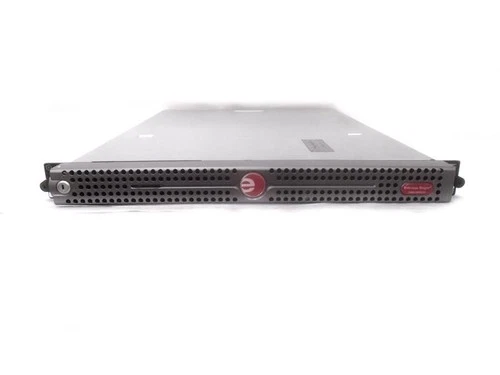
⚙️ Product Parameters
- Brand: Extreme Networks
- Model: DNSA-GE500-SX
- Product Family: Dragon Intrusion Defense System
- Product Name: GE500 Network Security Sensor Appliance
- Product Category: Network Security / Intrusion Detection Sensor
- Appliance Class: GE500
- Detection Methods: Signature-based, protocol-based, and anomaly-based detection
- Network Interface: Dual-port fiber Gigabit Ethernet, SX configuration
- Stated Performance Class: Up to 500 Mbps for the Dragon-E500 platform
- Network Medium: Fiber optic
- Deployment Role: Network traffic monitoring and intrusion detection
- Management: Requires a compatible Dragon security management environment
- Software Compatibility: Verify Dragon software version and management-system compatibility
- Power Requirements: Refer to the appliance nameplate; exact input rating not verified
- Dimensions: Not independently verified
- Weight: Approximately 21 lb, based on a reseller specification
- Place of Manufacture: Not verified
- Country of Origin: Not verified; check the product label
- Product Status: Seller-specific condition; confirm before purchase
- Discontinued Status: Reported discontinued by the manufacturer
🏭 Application Scenarios
- Enterprise network intrusion detection
- Fiber-based network security monitoring
- Monitoring traffic between network segments
- Detection of suspicious protocol activity and network misuse
- Security monitoring in data centers and corporate networks
- Legacy Dragon IDS installations requiring a compatible GE500 sensor
🔧 Installation and Operating Instructions
- Pre-installation inspection: Verify the model label, serial number, chassis condition, power connectors, cooling openings, and fiber interface condition. Confirm whether power cables, optical accessories, software media, and licenses are included.
- System compatibility check: Confirm that the appliance is supported by the existing Dragon IDS software release and management components. Verify the availability of required installation media, configuration files, and license entitlements.
- Network planning: Identify the monitored network segment, traffic direction, fiber connections, and required monitoring topology. Confirm that the connected optical interfaces and fiber type are suitable for the installed hardware.
- Rack installation: Install the appliance in a suitable rack or equipment cabinet using the correct mounting hardware. Maintain adequate airflow and access for servicing.
- Power connection: Check the appliance nameplate for its exact input voltage and current requirements. Connect it only to a compatible, properly grounded power source.
- Initial startup: Apply power according to the manufacturer’s documented startup procedure. Allow the appliance to complete its hardware and software initialization, then check the available status indicators and system messages.
- Software and management configuration: Configure the sensor using the compatible Dragon IDS management environment. Apply the approved software version, license, network settings, and sensor configuration for the installation.
- Traffic monitoring setup: Configure the appropriate monitoring interfaces and traffic sources according to the network design. Verify that the sensor receives the expected traffic before enabling operational monitoring.
- Normal operation: Review sensor health, interface status, traffic visibility, event logs, and detection alerts. Investigate unexpected traffic gaps, interface errors, or repeated system warnings.
- Configuration changes: Back up the existing configuration before changing network settings, detection policies, software versions, or management connections. Apply changes during an approved maintenance window.
- Shutdown procedure: Follow the documented system shutdown procedure before disconnecting power. Avoid removing power while software updates, configuration writes, or other critical operations are in progress.
🧰 Daily Maintenance
- Check appliance status indicators and system health messages.
- Review intrusion detection alerts and event logs.
- Confirm that fiber connections remain secure and free from visible damage.
- Check for abnormal fan noise, overheating, or blocked ventilation.
- Monitor network interface status and traffic visibility.
- Review available storage and log capacity where supported.
- Back up configurations and retain relevant system records.
- Verify software and license records for the installed Dragon IDS environment.
- Arrange periodic inspection by qualified network security personnel.
❓ Troubleshooting Guide
Problem: The appliance does not power on.
Check the power source, power cable, input rating, and front-panel indicators. If the appliance remains unresponsive, isolate it and arrange hardware inspection.
Problem: No network traffic is detected.
Check the fiber connections, optical interface status, traffic source, and monitoring topology. Confirm that the correct network segment is connected.
Problem: The management system cannot communicate with the sensor.
Verify network addressing, routing, management connectivity, software compatibility, and license status. Check the relevant logs for communication errors.
Problem: Detection alerts are missing or inconsistent.
Review sensor configuration, traffic visibility, detection policies, and software status. Confirm that the expected traffic is reaching the monitoring interfaces.
Problem: Optical interface link is down.
Inspect the fiber cable, connector cleanliness, optical transceiver compatibility, and remote-end interface status. Use approved optical components for the platform.
Problem: Repeated system errors or unexpected restarts.
Review system logs, temperature conditions, power stability, and software status. Preserve diagnostic information before arranging repair or replacement.
⚠️ Safety and Compatibility Precautions
- Installation and servicing should be performed by qualified network or IT personnel.
- Verify the appliance input rating before connecting power.
- Use appropriate electrostatic discharge precautions when handling internal components.
- Never look directly into an active fiber-optic connector.
- Keep ventilation openings unobstructed.
- Back up configurations before making software or network changes.
- Confirm software licensing and management-platform compatibility before deployment.
- Do not assume that a physically compatible replacement is automatically software-compatible.
- Because this is a discontinued legacy product, confirm the availability of software, security updates, and technical support before using it in a production security environment.
🔗 15 Related Extreme Networks / Dragon Security Models
- DNSA-GE500-TX
- DNSA-GE250-SX
- DNSA-GE250-TX
- DNSA-GIG-SX
- DNSA-GIG-TX
- DNSA-FE-TX
- DSNSA7-GE500-SX
- DSNSA7-GE500-TX
- DSNSA7-GE250-SX
- DSNSA7-GE250-TX
- DSNSA7-GIG-SX
- DSNSA7-GIG-TX
- DSIPA7-GE500-SX
- DSIPA7-GE500-TX
- DSIPA7-GE250-SX
These models are related Dragon IDS appliance or sensor-family references. They may differ in throughput, interface type, hardware generation, and software requirements. They are not confirmed direct replacements for DNSA-GE500-SX; verify compatibility before substitution.


