
Product Description
The Beckhoff CP2219-0020 is a 19-inch multi-touch built-in Panel PC designed for industrial automation, machine control, and process visualization applications. Part of the Beckhoff CP22xx series, this industrial computer combines a high-resolution TFT display, multi-finger touchscreen operation, and PC-based computing in a compact control-cabinet installation format. Its 1280 × 1024 resolution provides a 5:4 display format for machine interfaces, production monitoring, and operator control applications. The CP2219-0020 supports Intel processor configurations, DDR4 memory, Ethernet networking, and multiple industrial connectivity interfaces. With a 24 V DC power supply and an IP65-rated front panel, it is suitable for integration into industrial control cabinets and machine operating stations. It can run supported Windows-based applications and Beckhoff automation software, depending on the installed hardware and operating-system configuration.
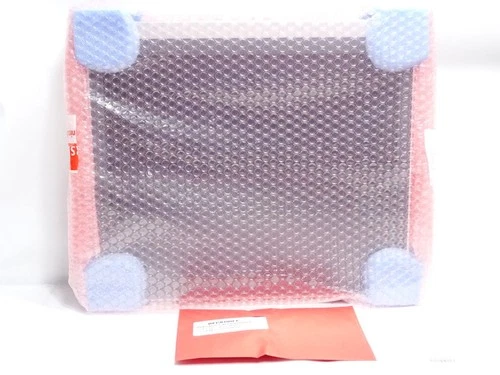
Key Product Parameters
- Brand: Beckhoff
- Model: CP2219-0020
- Series: CP22xx Multi-Touch Panel PC
- Product Name: 19-Inch Industrial Built-in Panel PC
- Display Type: TFT color display
- Display Size: 19 inches
- Resolution: 1280 × 1024 pixels
- Display Format: 5:4
- Touch Technology: Multi-finger touchscreen
- Housing: Aluminum housing with glass front
- Front Protection: IP65
- Rear Protection: IP20
- Processor: Intel Celeron G3900TE 2.3 GHz, 2 cores in the standard configuration; higher processor configurations depend on the ordered option
- Motherboard: 3½-inch motherboard for 6th/7th-generation Intel Celeron, Pentium, and Core i3/i5/i7 processors
- Memory: 4 GB DDR4 RAM standard; configurations up to 32 GB depending on option
- Graphics: Integrated processor graphics
- Ethernet: 2 × 100/1000BASE-T
- Storage: 2.5-inch hard disk or SSD and CFast options, depending on configuration
- Interfaces: 4 × USB 3.0, 1 × RS232, 1 × DVI; front USB option available
- Power Requirements: 24 V DC
- Operating System: Configuration-dependent; supported options include Windows Embedded Standard 7 and Windows 10 IoT Enterprise
- Installation: Control-cabinet front mounting
- Place of Manufacture: Not confirmed; check the product nameplate
- Dimensions: Confirm the exact cabinet cutout and housing dimensions from the installation drawing
- Weight: Not verified for the exact configuration
- Country of Origin: Not confirmed
- Product Status: Confirm actual condition and packaging with the seller
- Discontinued Status: Not confirmed
Operating Procedures and Usage Instructions
1. Installation Preparation
- Verify the complete CP2219-0020 part number and installed hardware configuration.
- Check the control cabinet cutout, mounting depth, and available installation space.
- Confirm that the cabinet provides adequate ventilation and heat dissipation.
- Inspect the front glass, touchscreen, housing, and connectors for damage.
- Verify the 24 V DC power supply and protective grounding arrangement.
- Disconnect electrical power before installation.
2. Installation and Connection
- Insert the Panel PC into the prepared control-cabinet opening.
- Secure the unit using the specified mounting hardware.
- Connect the 24 V DC supply with correct polarity.
- Connect Ethernet cables to the designated network ports.
- Connect USB, RS232, DVI, and other peripheral interfaces as required.
- Check all connections against the Beckhoff wiring and installation documentation.
3. Power-On and Initial Testing
- Restore the 24 V DC supply.
- Start the Panel PC and observe the startup process.
- Confirm that the display operates at the supported resolution.
- Test touchscreen response across the active display area.
- Verify Ethernet connectivity and peripheral recognition.
- Check the operating system and installed automation software for startup errors.
4. Normal Operation
- Open the installed HMI or machine-control application.
- Confirm communication with the connected PLC and automation network.
- Monitor machine status, process values, alarms, and operating conditions.
- Use the multi-touch interface to navigate screens and operate approved controls.
- Check system performance and available storage during normal operation.
- Record abnormal behavior or diagnostic messages for maintenance review.
5. Parameter Configuration and Modification
- Back up the operating system, application files, and relevant configuration data.
- Confirm the installed processor, memory, storage, and operating-system versions.
- Configure Ethernet addresses and network settings according to the machine’s communication plan.
- Install or configure Beckhoff automation software only when supported by the installed hardware and license.
- Adjust display and touchscreen settings using the appropriate operating-system tools.
- Test HMI communication, application startup, and operator functions after changes.
6. Shutdown Procedure
- Stop active machine operations and place the system in a safe state.
- Save application data and close running programs.
- Shut down the operating system using the normal software procedure.
- Switch off the 24 V DC supply after shutdown is complete.
- Isolate power before disconnecting cables or performing hardware maintenance.
Daily Maintenance
- Clean the touchscreen and glass front with a soft, lint-free cloth.
- Avoid abrasive cleaners, sharp objects, and excessive pressure.
- Check the cabinet ventilation system and remove dust from air filters.
- Inspect Ethernet, USB, serial, and power connections for looseness.
- Monitor processor temperature and system performance.
- Check storage health and maintain regular backups.
- Inspect the cabinet seal and mounting hardware to preserve the specified front protection.
- Review operating-system and application logs for recurring faults.
Troubleshooting
1. Panel PC Does Not Start
Check the 24 V DC supply, polarity, protective grounding, and power connections. Verify that the supply can provide the required current.
2. Touchscreen Does Not Respond
Inspect the glass surface and touchscreen connection. Check the operating-system touch configuration and installed drivers.
3. Display Shows No Image
Check the startup status, internal display connections, and graphics configuration. Review system diagnostics for hardware faults.
4. Ethernet Communication Failure
Inspect network cables, port indicators, IP settings, and network configuration. Confirm that the connected PLC and network equipment are operating normally.
5. USB or RS232 Device Is Not Recognized
Check the peripheral, cable, driver, and interface configuration. Verify that the selected port is supported and enabled.
6. System Runs Slowly
Check processor load, memory usage, storage condition, background applications, and operating-system health. Confirm that the installed software is suitable for the hardware configuration.
Safety Precautions
- Installation and maintenance must be performed by qualified industrial automation personnel.
- Disconnect electrical power before opening the cabinet or servicing connections.
- Use a regulated 24 V DC power supply with correct polarity.
- Provide suitable grounding and cabinet ventilation.
- Do not expose the rear of the unit to liquids or excessive dust.
- Avoid impact or excessive pressure on the touchscreen.
- Verify software, hardware, and network compatibility before system modifications.
- Back up all important machine data before maintenance or replacement.
- Do not remove or replace internal components while the equipment is energized.
Product Keywords
Beckhoff CP2219-0020, CP2219, Beckhoff Panel PC, 19-inch industrial Panel PC, multi-touch Panel PC, 1280 × 1024 display, CP22xx series, industrial touchscreen computer, Beckhoff automation computer, 24 V DC Panel PC, control cabinet computer, industrial HMI system, machine visualization terminal, Beckhoff CNC control computer.
Product information: https://www.newplcdcs.com
15 Related Beckhoff Models
The following models belong to related Beckhoff Panel PC and industrial computer families. They are useful for product searches and system expansion research, but are not automatically direct replacements for CP2219-0020.
- CP2212-0020 – 12-Inch Multi-Touch Panel PC
- CP2213-0020 – 12.1-Inch Multi-Touch Panel PC
- CP2215-0020 – 15-Inch Multi-Touch Panel PC
- CP2216-0020 – 15.6-Inch Multi-Touch Panel PC
- CP2218-0020 – 18.5-Inch Multi-Touch Panel PC
- CP2221-0020 – 21.5-Inch Multi-Touch Panel PC
- CP2224-0020 – 24-Inch Multi-Touch Panel PC
- CP2619-0020 – 19-Inch Panel PC, ARM-Based Family
- CP2719-0020 – 19-Inch Fanless Panel PC
- CP2721-0020 – 21.5-Inch Fanless Panel PC
- CP2724-0020 – 24-Inch Fanless Panel PC
- CP2218 – CP22xx 18.5-Inch Panel PC Family
- CP2221 – CP22xx 21.5-Inch Panel PC Family
- CP2224 – CP22xx 24-Inch Panel PC Family
- CP32xx – Beckhoff Multi-Touch Panel PC Family
Always verify the full ordering code, processor configuration, mounting dimensions, interfaces, and operating-system support before selecting a replacement.


